
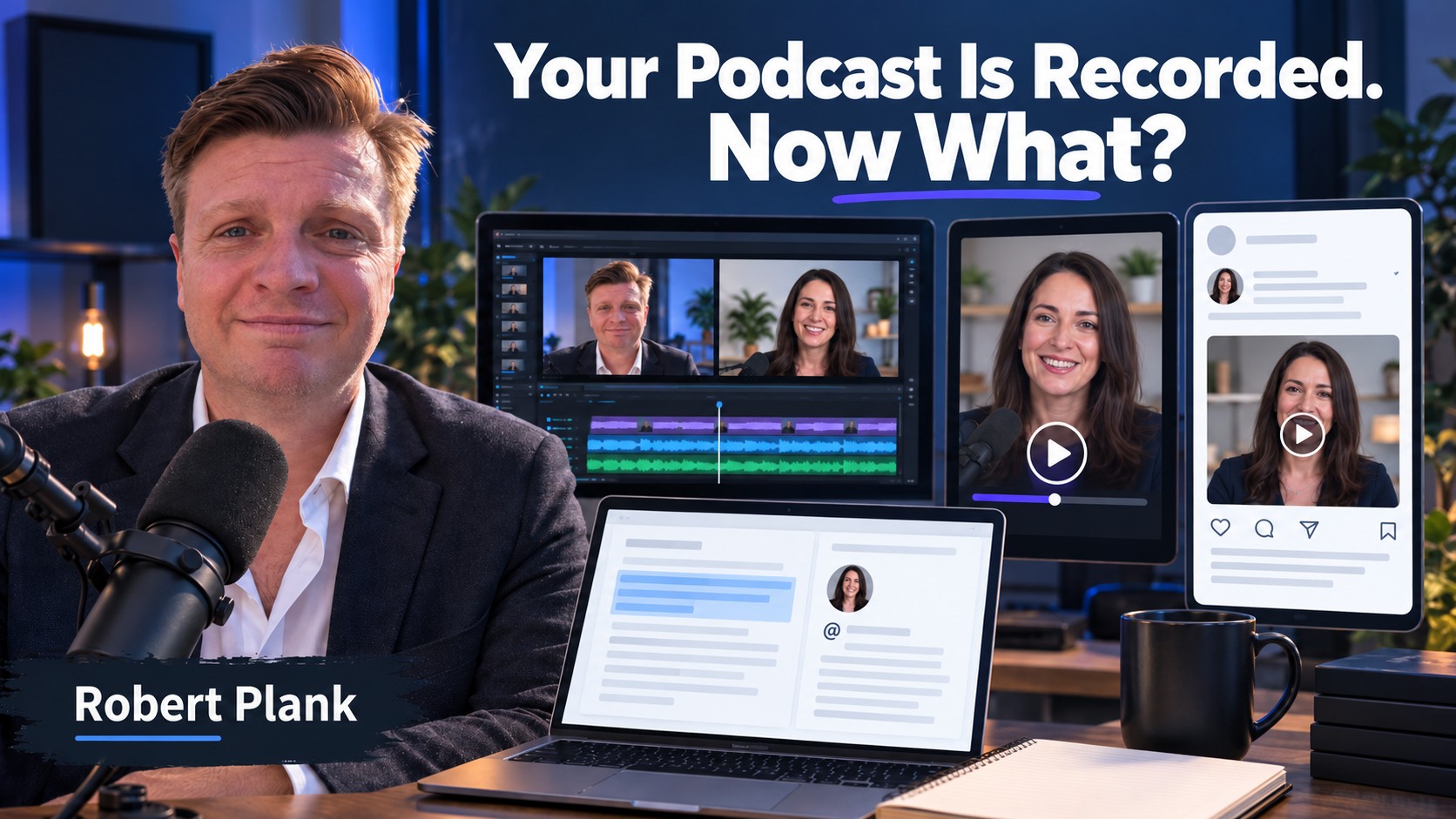
What to Do After Recording a Podcast: Publish One Useful Guest Clip
After I recorded an interview with Jim Bramlett, I didn't want to wait for the complete episode to be published before giving him something useful. I exported the full recording for production, chose a short clip, fixed the framing and captions, and put the video on LinkedIn with Jim tagged.
The finished clip was 59 seconds. It featured Jim explaining an idea from our conversation, rather than cutting back to me making some grumpy-looking face while he talked. Nobody needed that.
That's the small job I want to finish after recording a podcast: publish one guest-focused clip while the conversation is fresh. The full episode can follow its normal production schedule. Here's the workflow I demonstrated with Riverside, Otter.ai, and ChatGPT, plus the checks that keep the short version faithful to the interview.
Keep the Full Episode Moving While You Make the Clip
Start with the completed recording. Give the project a recognizable name, such as the guest's full name, and confirm the participant tracks have finished uploading. If you stopped and restarted, check that you've found every segment.
For my normal workflow, I create a combined video showing both participants. In Jim's demonstration, I exported a 1080p grid video, with audio normalization and background-noise removal selected. Preview the sound after processing. Those settings are useful options, not a substitute for listening.
The export isn't the same as the original recording, and it may take time to process. Wait for the finished export before downloading it. Keep the original participant tracks available until you've checked the episode, since separate tracks give an editor more control if something needs fixing.
My downloaded interview was nearly a gigabyte. It was the file for the full production process, not the short video I was about to publish on LinkedIn. Keep those jobs distinct so you don't accidentally upload the entire interview.
One Useful Post After the Interview
- 1. Save the episodeStart the full export and preserve the original tracks.
- 2. Choose one thoughtFind a guest explanation that works without the full interview.
- 3. Finish the clipCheck meaning, framing, captions, and sound.
- 4. Write from the sourceUse the transcript, then verify the draft against the recording.
- 5. Publish and deliverTag the correct guest and send the live post.
You can work on the short clip while the full export processes. For the full episode's audio production path, see the video interview to audio podcast guide. This workflow begins after that conversation exists.
Choose a Complete Thought, Not Just an Automatic Suggestion
Riverside's Magic Clips can suggest excerpts from a recording. I use those suggestions as a starting point and listen to a promising clip in the editor. I don't need every suggested video.
In Jim's interview, I selected a moment where he discussed prioritizing customer needs. Someone scrolling past should be able to follow the idea without hearing the preceding 20 minutes. If a clip begins with "that's why it worked," find out what "it" refers to before deciding the excerpt is finished.
Listen before and after the selected passage. Keep a condition or qualification that changes the advice. If the useful explanation needs a little more setup, extend the clip or choose another moment. The goal isn't to squeeze every answer into 59 seconds. That was the length of this particular clip.
For a broader selection method, see how I choose podcast clips for social media. Here, we're choosing one that can become the first follow-up with a guest.
Keep the Guest Visible and the Captions Readable
I prefer a guest-focused layout for this kind of post. In the demonstration, I switched to a full-screen view and removed cuts back to me while Jim was speaking. That made the video match the purpose of the post: show his idea.
Check the entire clip after changing the layout. A landscape recording cropped into a portrait video can leave the guest at the edge. Adjust the framing, then watch later moments to make sure their face stays in view.
Captions need the same review. Riverside had placed some words across Jim's forehead. I moved the text and adjusted its size so viewers could read it without covering him. A position that works for a short sentence can fail when a longer sentence takes three lines.
I like a larger font and a purple caption background, but those are preferences. Readable words and a visible guest matter more than copying my color choice. Correct names, terminology, and any transcription mistakes that change the point.
Export the clip, play the downloaded file, and inspect it on your phone. Listen with sound, then check whether the captions carry the explanation when sound is off. You want to catch an obscured face or a wrong name before the guest sees it.
Use the Transcript Without Publishing Its Mistakes
I imported the full video into Otter.ai and exported a text transcript. Riverside already supplies transcripts, so you don't need a second transcription service if the transcript you have is usable. Otter was part of the workflow I demonstrated.
I labeled the speakers Robert Plank and Jim Bramlett. Some of the speaker identification didn't behave the way I expected. I didn't need to repair every label across the entire interview, but I did need to check the passage used for the post. Any idea or quotation attributed to Jim has to be his.
I then used a custom GPT I call Podcast Repost to draft a LinkedIn description from the conversation. You can give a drafting tool a focused instruction such as this:
Use this transcript and the selected clip to introduce the guest's specific point. Write a concise LinkedIn post. Do not add results, quotations, credentials, or claims that aren't in the source. Flag anything that needs checking.
Read the result against the recording. Confirm the guest's name, role, website, and the substance of the excerpt. Don't let an entire-interview summary promise something the short clip doesn't contain.
Then edit the writing. Remove leftover instructions, odd spacing, asterisks that were meant as formatting, and chatbot endings asking whether you'd like more tweaks. I want a description I'd actually publish, not a transcript of my conversation with the drafting tool.
| Output | Its job | Check before using it |
|---|---|---|
| Full interview export | Feed the complete episode into production. | All segments are present and the audio is usable. |
| Guest-focused clip | Deliver one useful explanation in a social post. | Meaning, framing, captions, and sound survive the edit. |
| LinkedIn description | Give viewers a reason to watch that explanation. | Attribution, names, links, and claims match the source. |
You can use the full transcript to understand the context and still keep the written post centered on the selected moment. A useful description doesn't have to list every subject we discussed.
Tag the Right Person and Send the Live Post
Upload the short video to LinkedIn, add the edited description, and preview both together. When mentioning the guest, select the correct person from the suggestions rather than leaving their name as plain text or choosing a same-name stranger.
Make sure the clip fits what you agreed to publish. If a passage needs the guest's review, get that review before posting. Same-day publication is a useful target for an ordinary approved excerpt, not a reason to rush past an unresolved edit.
Once it's live, send the guest the post. They can watch, comment, or share it if they want. I can't control whether Jim or any other guest reshares a video. I can make sure the person receives a finished piece that features their contribution.
The important part is that your first guest follow-up doesn't have to depend on the entire production schedule.
Keep the full episode moving, too. Put its files and edit notes where the production team expects them. Record the clip URL and guest notification alongside the episode status so you can see what has already been delivered.
Finish One Small Piece Before Moving to the Next Interview
The result of my Jim Bramlett demonstration was straightforward: a full interview saved for production and a 59-second video published on LinkedIn with Jim tagged. I had something specific to send him before the complete episode was ready.
Try that with your next interview. Choose one useful moment, make the guest look and sound good, write from the source, and send the finished post. You don't need to turn the whole recording into a month of content before following up.
If choosing the clip is easy but editing, captioning, and publishing keep getting pushed back, see how DFY Podcast handles production. We can take the recording through the full episode and promotional materials, giving you a process for delivering the work instead of another promising MP4 in your downloads folder.